
For Teachers
Start a live classroom
- Open the activity you want to play and select the content for the lesson.
- Select Host Live. The live room siebar opens with a QR code and a join link.
- Share the QR code or link with students. Keep the teacher page open while students join.
- Wait for students to appear in Players Joined. Students are listed after they have connected to the selected live game.
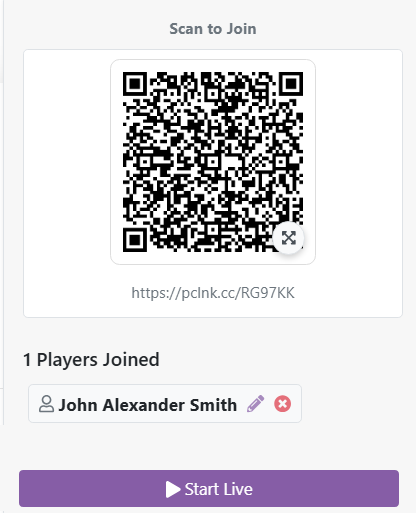
- Select Start Live when the class is ready.
The teacher can select the pencil icon beside a student's name to change the name shown in the room. The remove icon removes a student from the current room. A removed student can join again using the room link unless the game has already started and new players are locked out.
Play and restart
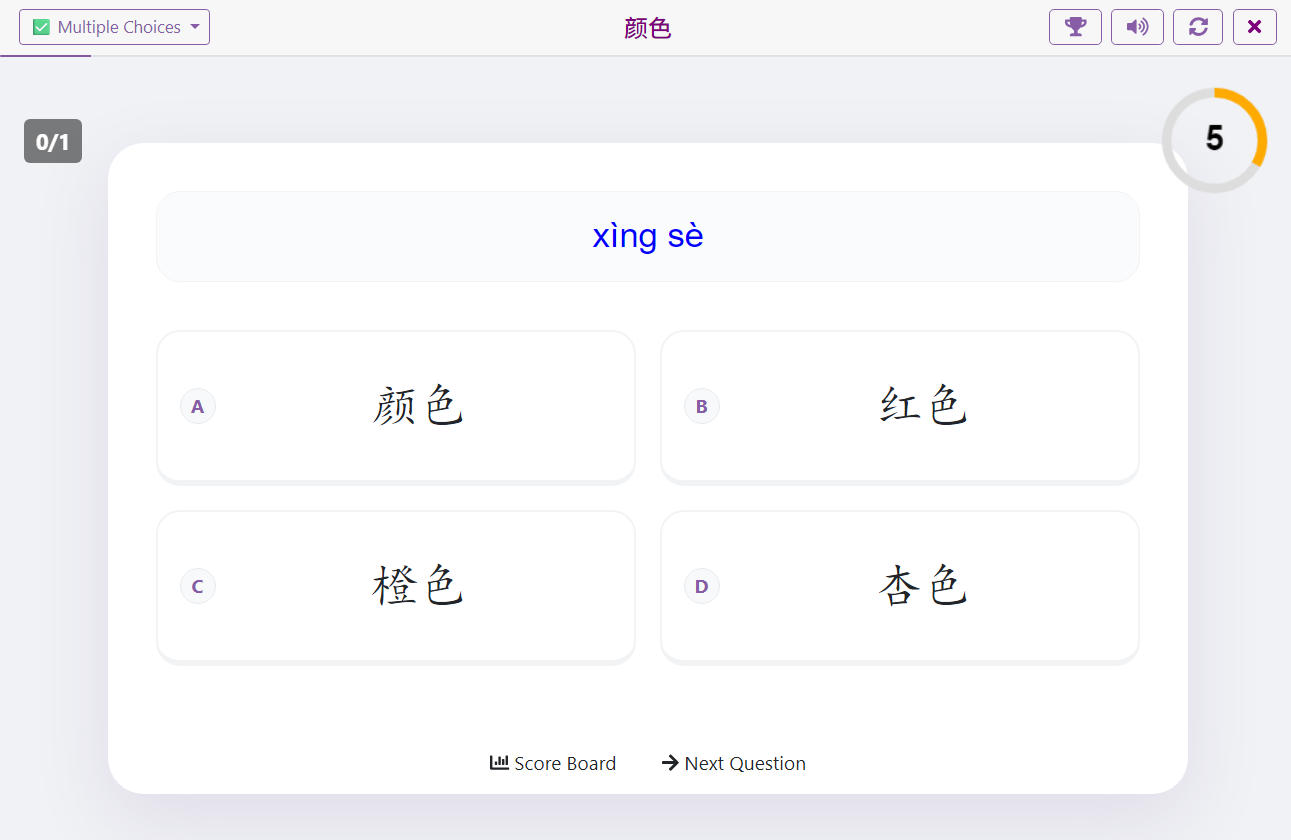
- In Multiple Choice and Sentence Multiple Choice, use the on-screen game controls to run the live questions. Students submit answers from their own devices.
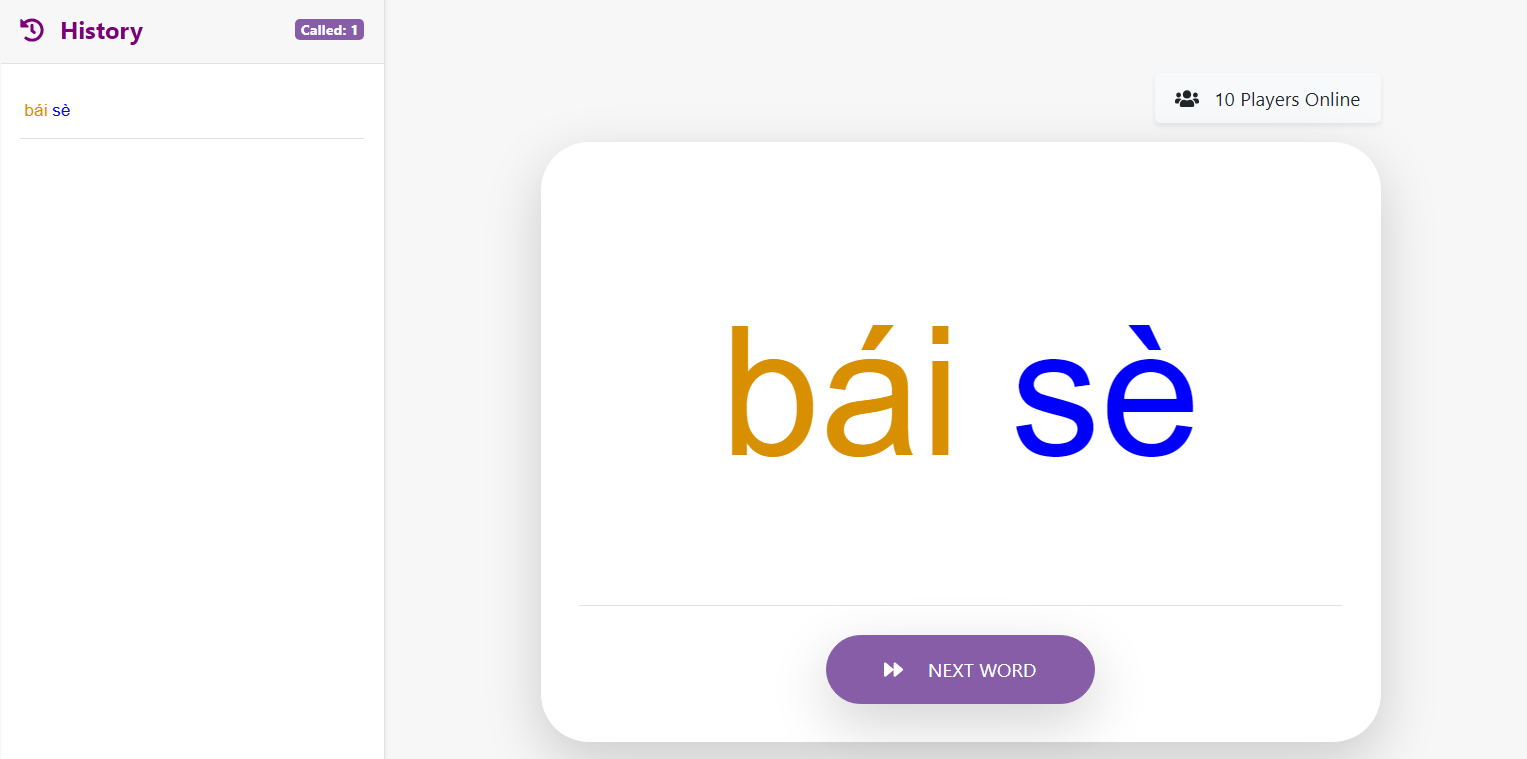
- In Live Bingo, select NEXT WORD to call the next item. Students mark matching spaces and select BINGO when they have a valid line.
- After a round, use the game's Restart or Start Again control to begin another round where available. Restarting resets round progress; it does not create a new classroom.
Switch to another live game
- On the teacher device, switch to the next activity using the top-left dropdown or by entering its URL.
- Select the lesson content and click Host Live.
- Wait for connected students to follow. They receive a notice, switch to the new game automatically, and reappear in your student list as they become ready.

Room reuse: If the current classroom is still active, hosting the next game reuses it automatically.
Students already in the room: They do not need to scan the QR code or open a new link again to follow the switch.
New students: Share the QR code or join link shown on the new activity with anyone joining for the first time.
Keep the teacher page open: Stay on the teacher screen during the switch so the room can apply the change cleanly.
Leaving a game and room expiration
"Quit Live" button or navigating to another activity leaves the current live-game screen; it is not an immediate command to delete the classroom. The room is automatically removed after about 60 minutes without teacher activity. If the room expires, create a new room and share its new QR code or link.
For Students
Join a classroom
- Scan the teacher's QR code or open the join link.
- Enter a name if prompted, then select Join Game.
- Wait for the teacher to start. The live game opens when the teacher begins.
A student can use a nickname; signing in is not required when the page offers the name-entry option. Keep the game page open and connected to the internet to receive questions and classroom game switches promptly.
Follow a game switch
When the teacher starts hosting a different live game in the same classroom, a notice appears before the page changes. The student is then taken to the new activity automatically. If the device was offline or the page was closed, reconnecting or reopening the classroom link may be needed to rejoin and load the current game.
Disconnects and reconnecting
The game attempts to reconnect automatically after a temporary network interruption and restore the student's room state. Keep the same browser tab open and wait for the connection to recover. If the room has expired or the page reports that the room is unavailable, ask the teacher for the current room link or QR code.
